
 See Our Latest Article on HelloNation
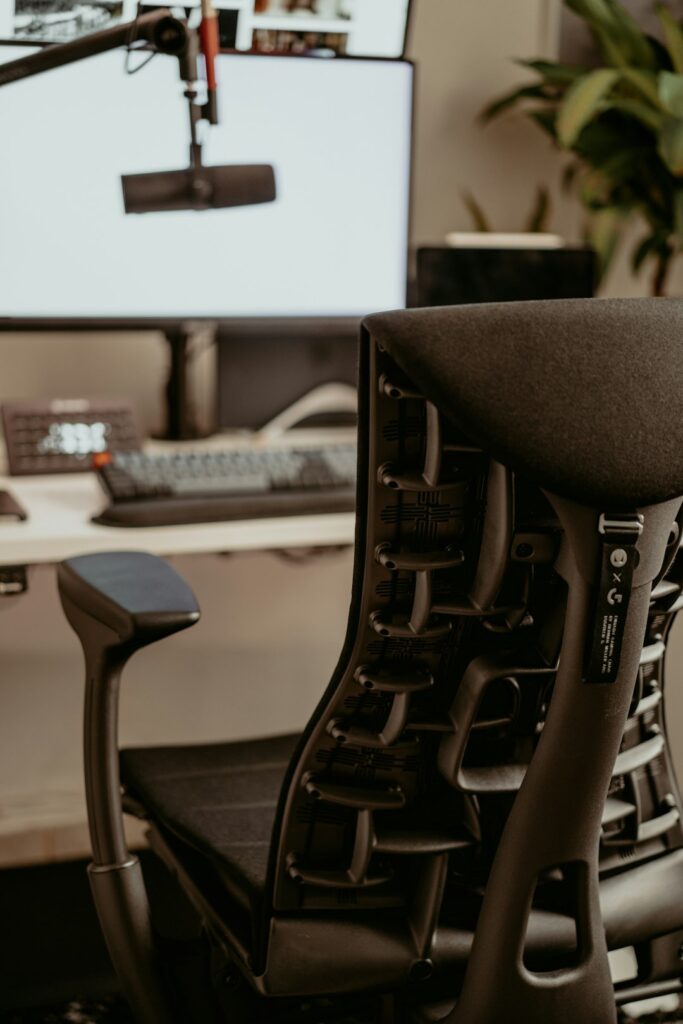
A spine-friendly workspace does not require expensive furniture or a perfect posture all day. The goal is to arrange the desk, chair, screen, and work habits so the spine stays supported, the joints can move freely, and no single position is held for too long.
For many residents, work happens in more than one setting: a dedicated home office, a kitchen table, a bedroom corner, or a temporary workspace during school breaks and seasonal weather. Each setup can be improved with a few practical adjustments.
What makes a workspace spine-friendly?
A spine-friendly workspace allows the head, shoulders, arms, hips, and feet to remain in comfortable alignment. It also makes movement easy rather than encouraging long periods of stillness.
A useful setup generally includes:
- A chair that supports the lower back
- A screen positioned near eye level
- A keyboard and mouse close enough to keep the elbows relaxed
- Feet supported by the floor or a footrest
- Enough room to change position without twisting or reaching repeatedly
No posture is ideal if it is held for hours. Even a well-adjusted chair cannot fully offset long periods of sitting without movement.
How should a desk chair be adjusted?
The chair should support a neutral, comfortable position rather than force the body into a rigid pose. Begin by adjusting the seat height so the feet rest flat on the floor and the knees are approximately level with, or slightly lower than, the hips.
The lower back should make light contact with the chair’s backrest. If the chair does not provide enough support, a small cushion or rolled towel may help fill the gap, provided it does not push the body too far forward.
The chair should also allow the shoulders to remain relaxed. Armrests can be helpful when they support the forearms without lifting the shoulders or forcing the elbows away from the body. If the armrests interfere with moving close to the desk, lowering or removing them may be more comfortable.
Avoid sitting on the front edge of the chair for long periods. This often causes the pelvis to rotate forward and encourages rounding through the lower back and shoulders.
Where should a computer monitor be placed?
The main monitor should be directly in front of the body, not angled far to one side. Turning the neck repeatedly toward a side monitor can contribute to stiffness, especially during long work sessions.
As a general starting point, the top of the screen should be near eye level, with the center of the screen slightly below it. The screen should be far enough away that the eyes can focus without leaning forward. Many people find that an arm’s length is a useful starting distance, although vision needs vary.
If a laptop is used as the primary computer, its built-in screen and keyboard create a compromise. Raising the laptop to a comfortable viewing height usually requires a separate keyboard and mouse. Without those accessories, users often choose between bending the neck downward or lifting the arms too high.
How should the keyboard and mouse be positioned?
The keyboard and mouse should be close enough that the elbows remain near the sides of the body. The forearms should be roughly parallel to the floor, and the wrists should stay relatively straight rather than bent sharply upward or outward.
A mouse that is positioned too far away can cause repeated reaching and shoulder tension. Moving it closer, using keyboard shortcuts, or alternating between hands for simple tasks may reduce strain.
The hands do not need to hover continuously. Light forearm support can reduce fatigue, but pressing the wrists firmly into a hard desk edge may create discomfort. A soft, rounded surface is generally more comfortable than a sharp edge.
Is sitting all day harmful for the spine?
Long, uninterrupted sitting can increase stiffness and fatigue, even when the chair and desk are properly adjusted. The issue is usually not sitting itself but remaining in one position for too long.
A practical routine is to change position every 30 to 60 minutes. The break does not need to be lengthy. Standing to refill water, walking through the home, stretching the legs, or looking away from the screen can interrupt prolonged static loading.
Short movement breaks may include:
- Five to ten bodyweight squats, if comfortable
- Gentle walking
- Shoulder rolls
- Calf raises
- Standing back extensions performed without forcing the range
- Slow neck turns within a pain-free range
Movement should feel controlled. Stretching that creates sharp, electrical, or worsening pain is not appropriate.

What if work happens at a kitchen table?
Kitchen tables are often too high for comfortable computer work, and standard dining chairs may not provide lower-back support. Rather than trying to sit perfectly for hours, adjust the arrangement as much as possible.
A firm cushion can raise the sitting surface slightly, while a footrest or stable stack of books can support the feet if they do not reach the floor. If the table is too high, raising the chair may help the arms, but the feet must then be supported.
The screen should still be brought closer to eye level. A temporary setup can be improved with a stable riser, but avoid unstable stacks that could tip or cause the screen to fall.
During colder months, people may work near windows, exterior doors, or heating equipment. Drafts and uneven temperatures can encourage shoulder tension or awkward sitting positions. Relocating the chair or adding a comfortable layer of clothing may help maintain a relaxed posture.
How can a home office support better movement?
The most useful home office is not necessarily the largest one. It should provide enough room to stand, turn, and walk briefly without obstacles. Keeping frequently used items within easy reach reduces repeated twisting and overreaching.
A sit-stand arrangement can be helpful if the desk height is adjusted carefully. While standing, the screen should remain near eye level, the elbows should stay close to the body, and the feet should be allowed to shift. Standing still for long periods can also cause fatigue.
Alternating between sitting and standing is generally more practical than trying to stand for an entire workday. A short walk or change of task may provide more benefit than simply switching from one static position to another.
Does good posture prevent all back and neck pain?
No. Posture is only one factor in spinal comfort. Sleep quality, stress, physical activity, previous injuries, vision problems, lifting habits, and overall workload can also influence symptoms.
There is no single “perfect” sitting posture that prevents every problem. A position that feels comfortable for one person may not suit another. The most useful approach is to avoid extreme or painful positions, use support where needed, and change positions regularly.
New, severe, or persistent pain deserves attention, especially when it is accompanied by weakness, numbness, loss of coordination, unexplained weight loss, fever, or changes in bladder or bowel control. Symptoms after a significant fall or collision also warrant prompt medical evaluation.
What is a simple workspace check?
At the start of the workday, take a brief look at the setup:
- Are the feet supported?
- Are the shoulders relaxed?
- Is the screen directly in front?
- Are the elbows close to the body?
- Is the lower back supported without being forced?
- Can the position be changed easily?
- Is there a plan for regular movement breaks?
If several answers are no, change one feature at a time. Small adjustments are easier to evaluate than replacing every piece of furniture at once. A workspace that supports comfortable movement throughout the day is usually more useful than one designed around a rigid posture standard.